how-to
How to convert HEIC to JPG on any device
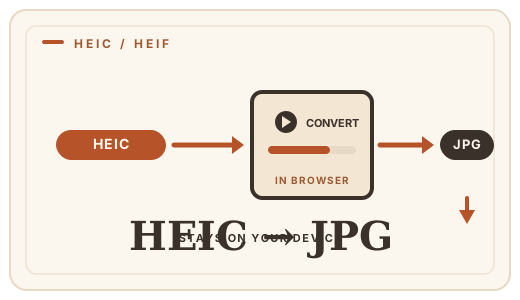
Your iPhone saves photos as HEIC, and the rest of the world keeps asking for JPG. The fastest way out is not an app install or a cloud service — it is a browser tab. Convert HEIC to JPG with Optimal Convert: the HEIC is decoded on your device by libheif WebAssembly, re-encoded as JPG, and downloaded. No account, no upload, and it works on any device with a modern browser.

Why HEIC keeps showing up
Since iOS 11, iPhones default to High Efficiency mode, which stores photos as HEIC. It is a modern format that holds roughly twice the detail of a JPG at the same size — ideal on the phone, inconvenient everywhere else, because many websites, forms, email clients and older programs do not open it. The pragmatic fix: keep HEIC as your archive and convert a JPG copy for every destination that needs one.
Step by step
1 · Open the converter
On any device — iPhone, Windows, Mac, Android — open the HEIC to JPG converter in your browser.
2 · Add your HEIC photo
Drag the .heic file into the drop zone or tap to browse. Select one photo or several; each becomes its own JPG.
3 · Download your JPGs
The libheif decoder runs as WebAssembly in your tab, the JPG is written on your device, and the result downloads. Your photos never left your phone or computer at any point.
If you would rather stop the source
On the iPhone itself: Settings → Camera → Formats → choose "Most Compatible" instead of "High Efficiency". New photos will then save as JPG. Existing HEIC files stay HEIC — that is when a quick conversion like the one above is the easiest path.
What you can convert HEIC to
JPG is the safe default for forms and email, but not the only option. Optimal Convert also writes HEIC to PNG for graphics that need lossless or transparency, and HEIC to WebP for the web. All three run locally and are free.
Frequently asked questions
Does converting HEIC to JPG reduce quality?
It re-encodes to JPG at 92% quality by default — visually lossless for almost all photos, and you can raise the quality in the converter. The image still carries all the detail you can see.
Can I convert HEIC without an app?
Yes — the converter is a web page. It runs libheif as WebAssembly in your browser, so there is nothing to install and your photos are never uploaded.
Will this work on my iPhone?
Yes. Open the [HEIC to JPG converter](/convert/heic-to-jpg) in Safari on the phone, add the photo from your library, and download the JPG — all on-device.
How do I convert many HEIC photos at once?
Select multiple files when you browse. Each HEIC becomes its own JPG, processed in your tab. There is no limit.
Convert it
Each conversion runs in your browser — free, unlimited, and nothing is uploaded.
Share this guide
Ready-made social images for this post — sized for Facebook/Open Graph, Instagram and Pinterest. They match the card link previews show, and the same art is rendered locally for every format below.

Facebook · Open Graph
og:image — also LinkedIn, X and Slack previews
Download PNG
Instagram feed
square post · 1080px is Instagram’s native size
Download PNG
Pinterest pin
2:3 ratio · Pinterest’s recommended pin size
Download PNGKeep reading

HEIC vs JPG — iPhone photo compatibility
Why your iPhone saves HEIC, when it becomes a problem, and how to convert HEIC to JPG online in your browser — free, no uploads, no app to install.
Read the guide →
JPG vs PNG — which image format?
JPG vs PNG explained: compression, transparency, file size, and when each wins. Convert between them online — free, in your browser, no uploads.
Read the guide →
HEIC vs HEIF — explained
HEIC and HEIF are the same codec in different containers. A plain-English explainer, plus a free online converter that turns HEIC into JPG or PNG, no uploads.
Read the guide →